1
Open Settings
Sign in to the MD Telemed app, then tap the Settings tab in the bottom navigation bar. Under the Account section, select Account Management.
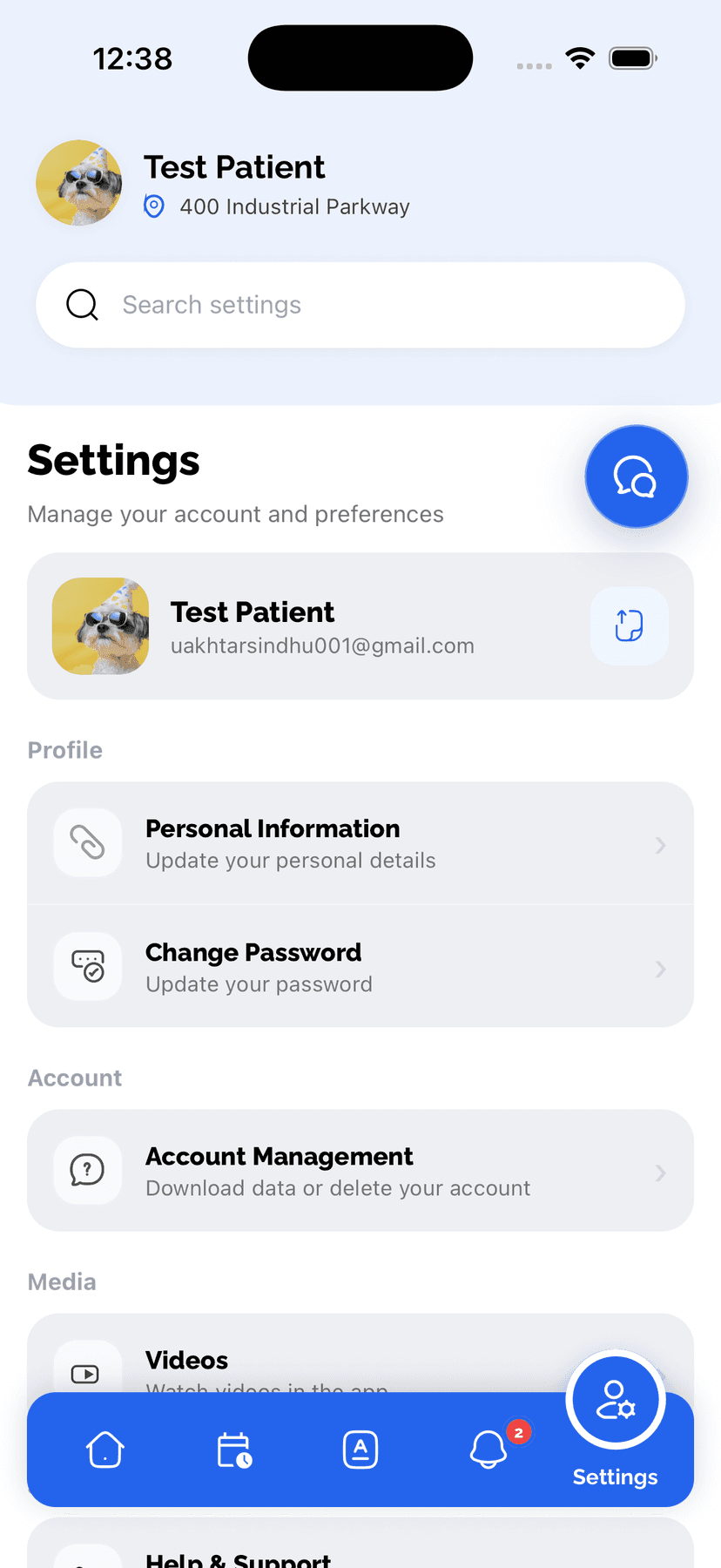

Follow these steps in the MD Telemed mobile app to permanently delete your patient account. We recommend downloading your data before you proceed.
This action is permanent
Deletion cannot be undone. You will need to create a new account to use MD Telemed again with the same email.
Download your data first
On the Account management screen, tap Download my data to save a JSON copy of your records.
Sign in to the MD Telemed app, then tap the Settings tab in the bottom navigation bar. Under the Account section, select Account Management.
On the Account management screen you can download a copy of your data first, then scroll to the Delete account section. Read the warning about what will be removed before continuing.
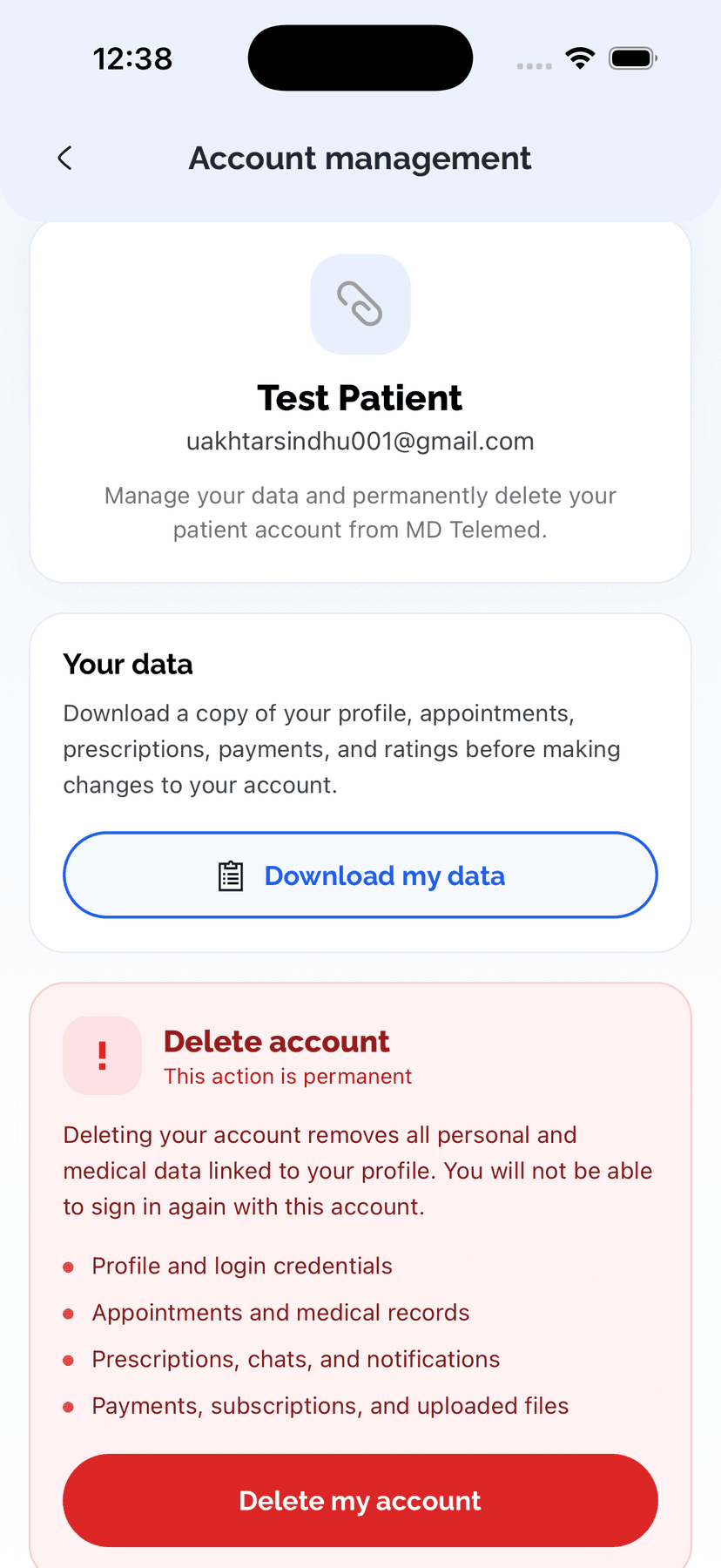
Tap Delete my account. A confirmation dialog will appear explaining that this action is permanent and cannot be undone.
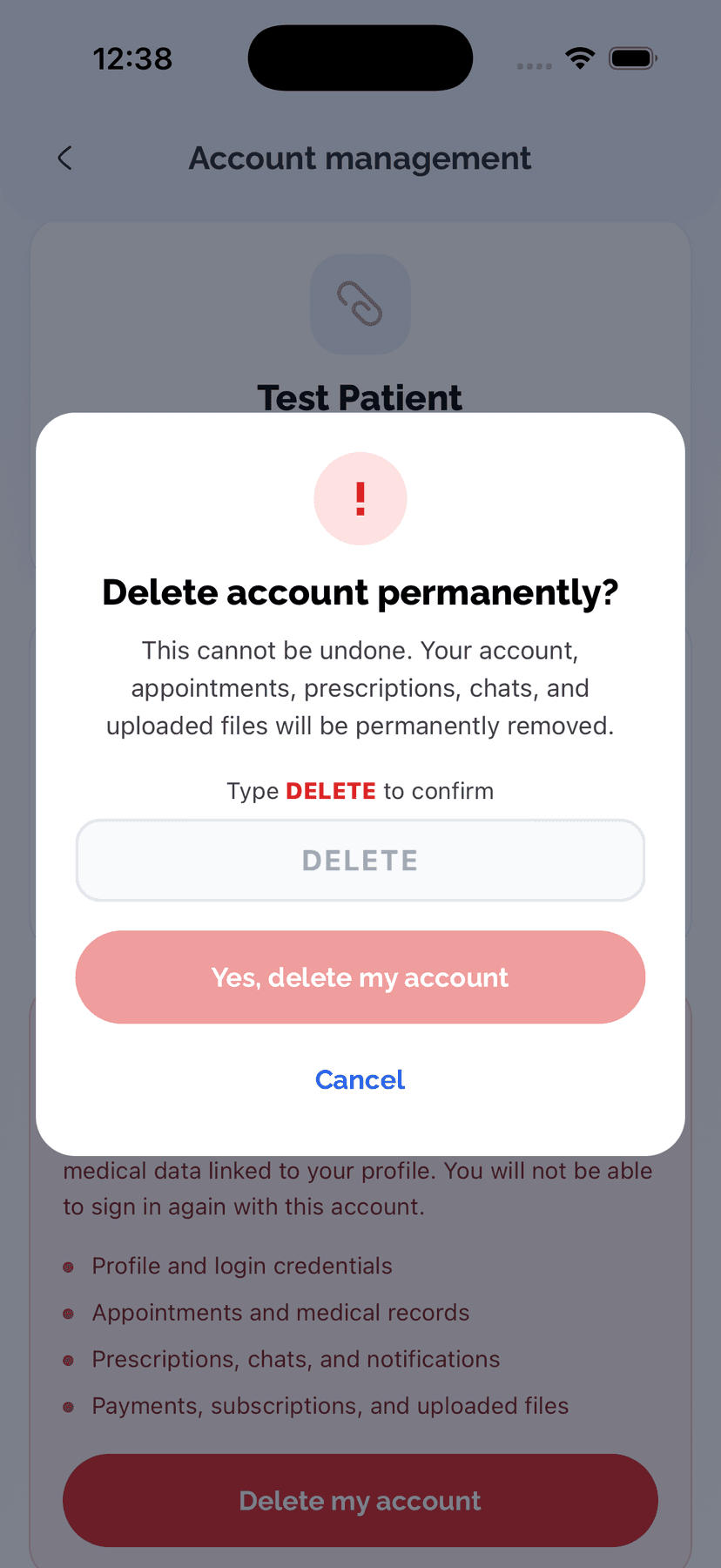
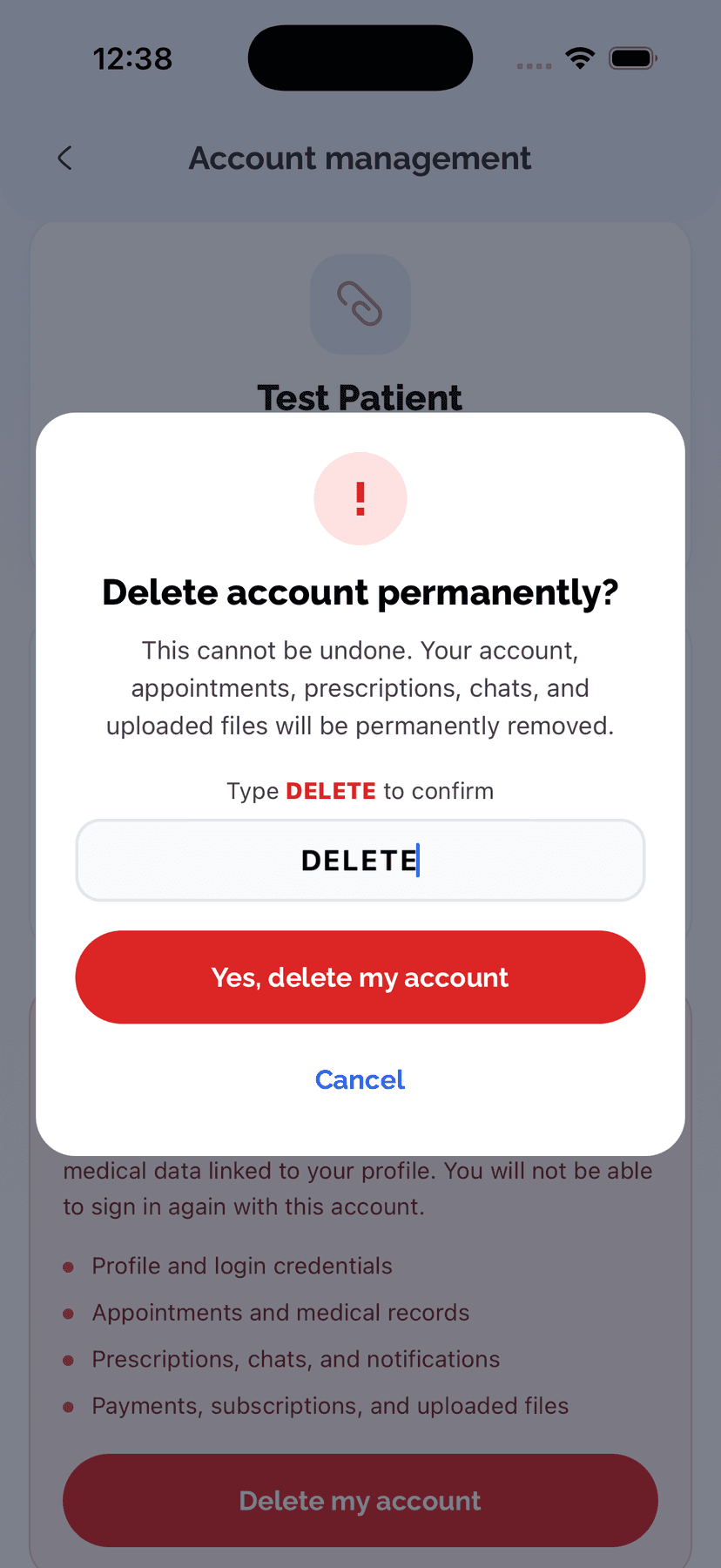
Type DELETE in the confirmation field, then tap "Yes, delete my account." You will be signed out and will not be able to sign in again with this account.
When you delete your account, the following data linked to your profile is permanently removed from the app:
Need help or can't access the app?
Contact our support team and we can help with account questions or deletion requests.
Account deletion is available in the MD Telemed mobile app under Settings → Account → Account Management.